How it works
From review link to a finished round, in three steps
You add one snippet. Your client clicks and writes. You get notes that say exactly what to change, and where.
You set up the project
Create a project for the client’s site. It gives you a snippet and a review link.
- Paste one script tag into the site. It is under 1 KB and does nothing for normal visitors.
- Send the review link, or invite people by email with one-tap sign-in.
- Limit it if you need to. Invite-only projects accept only the addresses you list.
Where the snippet goes
<script src="https://feedback.youragency.com/l.js" data-project="PROJECT_ID" async></script>Shopify
In theme.liquid, before </body>. On a store still behind a password, add it to password.liquid too.
layout/theme.liquid
Read the Shopify guideWordPress
Any theme or page builder: Divi, Elementor, WPBakery or Gutenberg.
Site footer
Read the WordPress guideWebflow
In the site settings custom code. Works on the staging address before launch.
Site settings › Custom code › Footer code
Read the Webflow guideSquarespace
In Code Injection, on version 7.0 and 7.1.
Custom Code › Code Injection › Footer
Read the Squarespace guideAstro
In your base layout, with is:inline so Astro leaves the tag as written.
src/layouts/Base.astro
Read the install guidePlain HTML
Before </body> on every page, or in the shared footer include.
index.html
Read the install guideYour client clicks and writes
They open the link on their own site, confirm their email with a 6-digit code or one tap from the invite, and start. Nothing to install, no password to remember.
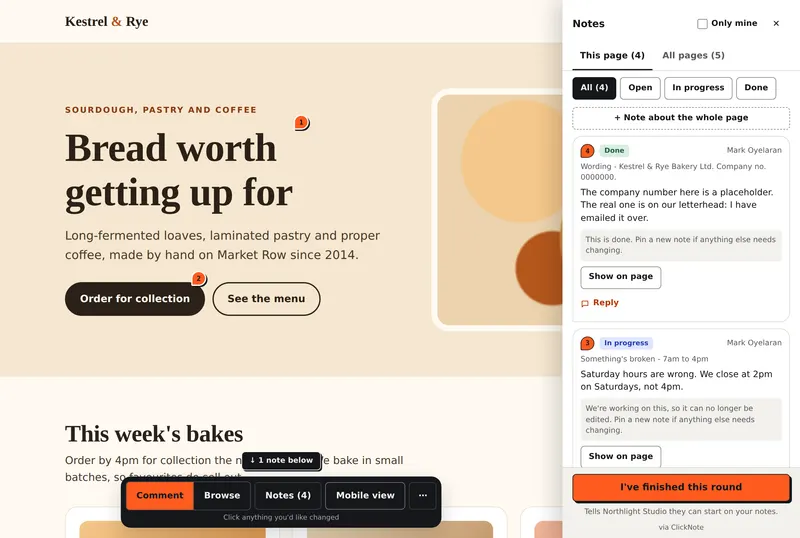
The toolbar on their site
Comment: Click any element, pick Wording, Design, Something’s broken or Question, and write the note. Or leave one about the whole page.
Browse: Use the site normally: open menus, follow links, fill in a basket.
Notes: Every note they left, with its status. They can edit or delete one until work starts.
Mobile view: Review the phone layout from a computer, without reaching for a phone.
When they have said everything, they press I’ve finished this round and you are told.
You work through the notes
Each note arrives with the page, the selector, a screenshot, the device and where the element lives in the theme. Nobody has to guess what “the thing at the top” means.
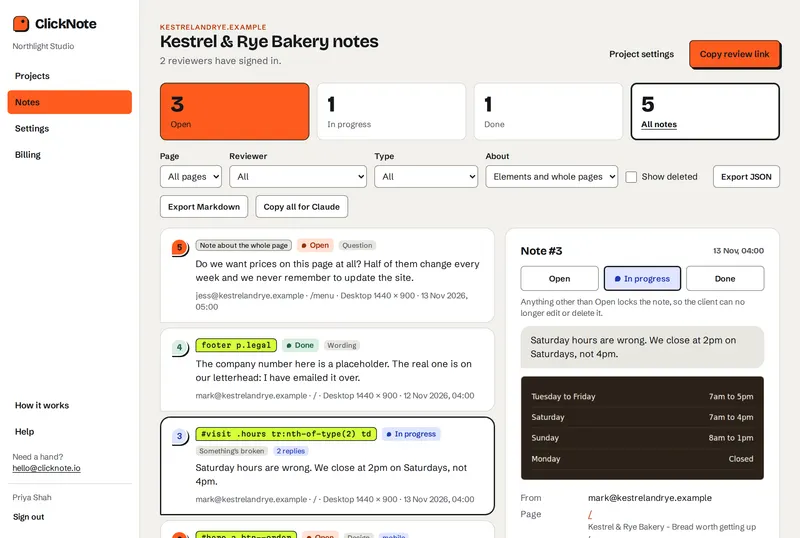
Statuses the client sees
Move a note from Open to In progress to Done. It changes on their side too.
Threads and @mentions
Ask your question on the note, next to the thing it is about.
Internal notes
Lines for your team that the client never sees.
Filters and exports
By status, page, reviewer or type. Export the list as JSON or Markdown.
Notifications
To Slack, Microsoft Teams, Discord or Google Chat, and a webhook on Agency and Scale.
AI agents
Copy for AI agent, and an MCP endpoint so Claude can read and update notes.
One round, start to finish
- You open the roundSend the link with a short brief and a date.
- The client reviewsColleagues see each other’s notes, so nothing is raised twice.
- They finish the roundOne button tells you there is nothing more on its way.
- You make the changesNotes move to In progress, then Done.
- The client checksThey see what is done on their own site, then round two starts if needed.
The full process, with a brief you can copy, is in our guide to collecting client feedback on a website.
Questions
Before you send your first link
Will the snippet slow the client’s site down?
No. It makes no extra request and no change to the page for normal visitors, so Core Web Vitals are unaffected.
Does it work on staging sites?
ClickNote does not load your client’s site through a proxy, which is where staging sites tend to break. The snippet runs on the page itself, so the reviewer is looking at the real site in their own browser.
On a Shopify store that is still password-protected, add the snippet to password.liquid as well as theme.liquid.
What if the page changes after a note?
The pin finds its element again by selector, then by XPath, then by a fingerprint of its text.
Is anything typed into forms captured?
No. Form field values stay out of the note and out of the snippet.
Try all three steps on a sample site
The live demo is a private workspace with a client site and notes already on it. No sign-up, and it is deleted 12 hours after you open it.